Lesson 1: Welcome to Processing
Lesson 1: Introduction
We'll use the programming language Processing to build some interactive animations of cool geoscience concepts. Processing is ideal for what we want to do because it is free, platform-independent, and open source. It is also a great language for a novice programmer to learn because you will not have to deal with all the libraries, compilers, and other system-level functions that usually have to be set up correctly by an experienced user for other programming languages to run.
The tutorial you'll work through in this course is one way to learn Processing. Another great reference is the Processing website [1].
I also suggest you invest in a good reference book as well. Here are my three favorites:
- Getting Started with Processing by Casey Reas
- Processing: A Programming Handbook for Visual Designers and Artists by Casey Reas and Ben Fry
- Processing for Visual Artists: How to Create Expressive Images and Interactive Art by Andrew Glassner
I cannot emphasize enough that in order to learn to program you really have to practice doing it. In my experience, that means typing the commands in yourself, not just cutting and pasting them and not just reading over my sample programs. While it is true that you could copy and paste my sample programs into your editing window and then run them, I recommend that instead, you follow along with my examples by actually writing each one of them or better yet, writing an interesting modification to each one of them.
Overview
This lesson introduces you to the programming language Processing. We will also read and discuss a news article about teaching computer programming in schools.
Learning Outcomes
By the end of this lesson, you should be able to:
- print output to the screen
- make a composition with an assortment of shapes
Note about my sample programs
The content pages in this lesson and most of the other ones contain programs for you to copy, modify, and test out. This course is part of Penn State's Open Educational Resources initiative and I am committed to user accessibility. Therefore, wherever possible I have written out the plain text of the program or command using syntax highlighting and a font that looks like computer code. I have also taken a screenshot of the display window created by the output of the program. In the case of a more complicated program, I have made a narrated screencast explanation of its guts as well as a close-captioned version of the screencast.
If you want to learn to program, don't try to copy-and-paste all of the sample programs. Build muscle memory and increase your cognitive load threshold by typing them yourself. Your neurons will thank you later.
What is due for Lesson 1?
| Assignment | Details | graded? | Due date |
|---|---|---|---|
| Reading: "A is for Algorithm" | Read and discuss in the Lesson 1 Reading Discussion board in Canvas | Yes. This discussion counts toward your overall discussion grade. | 17-25 May 2021 |
| Exercise 1.1 | Set the size and shading of the display window | No | 25 May 2021 |
| Exercise 1.2 | Tangent ellipses | No | 25 May 2021 |
| Exercise 1.3 | Tangent ellipses 2 | No | 25 May 2021 |
| Exercise 1.4 | Tangent ellipses 3 | Yes. Turn in to the Exercise 1.4 assignment in Canvas | 25 May 2021 |
| Exercise 1.5 | Write your name with primitive shapes | Yes. Turn in to the Exercise 1.5 assignment in Canvas | 25 May 2021 |
This lesson will take us 1 week to complete. Participate multiple times in the reading discussion in a discussion board 17 - 25 May, and turn in Exercises 1.4 and 1.5 to the appropriate assignment dropboxes in Canvas by 25 May 2021.
Questions?
If you have any questions, please post them to our Questions? discussion forum (not e-mail). I will check that discussion forum daily to respond. While you are there, feel free to post your own responses if you, too, are able to help out a classmate.
Lesson 1: Reading Assignment
Required Reading
Please read the article "A is for algorithm" from the 26 April 2014 edition of The Economist.
You will find this article linked from the discussion in the Lesson 1 Module in Canvas.
As you are reading, think about the following questions for our discussion:
- Does your school have computer science classes?
- What do you think about the apparent disconnect between programming and "ICT"?
Discuss!
Enter the discussion forum called "A is for algorithm Discussion" in the Lesson 1 module in Canvas. You'll see the above questions already there to get you started. You aren't limited to these topics, however. Feel free to start a new thread with questions or comments about the article. This discussion will take place over the entire week devoted to Lesson 1. For specific dates, see this lesson's overview page.
Lesson 1: Get started
Syntax introduced: println(), point(), line(), ellipse(), rect()
0. Download Processing and write a program.
The first thing you need to do is go to www.processing.org [1] and follow the link to download the correct version for your operating system. Once you have it, just run it. An editing window pops up that looks like this:
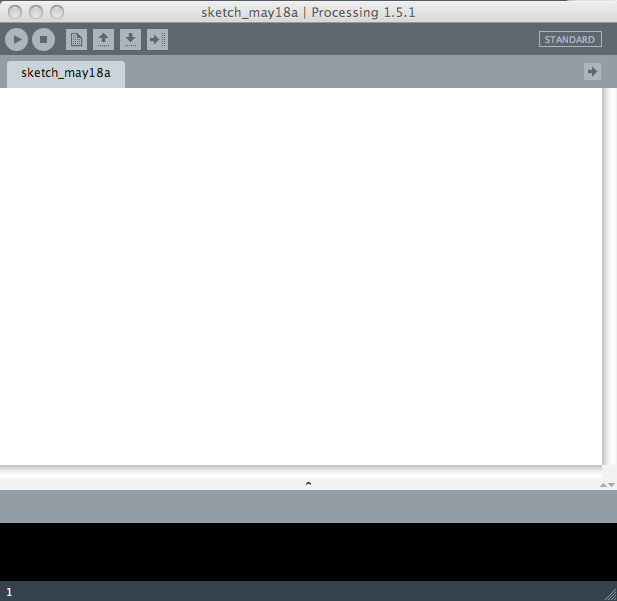
Type into the editing window this line exactly as I have written it:
println("Hello, world!");
println is all in lower case, then an open parenthesis, then a double quotation mark, then the phrase Hello, world!, then another double quotation mark, then a closing parenthesis, then a semicolon. Now click the "run" button. It's the one that looks like a triangle in the upper left of the editing window. The phrase Hello, world! should display in the black console on the bottom of the window, like so:
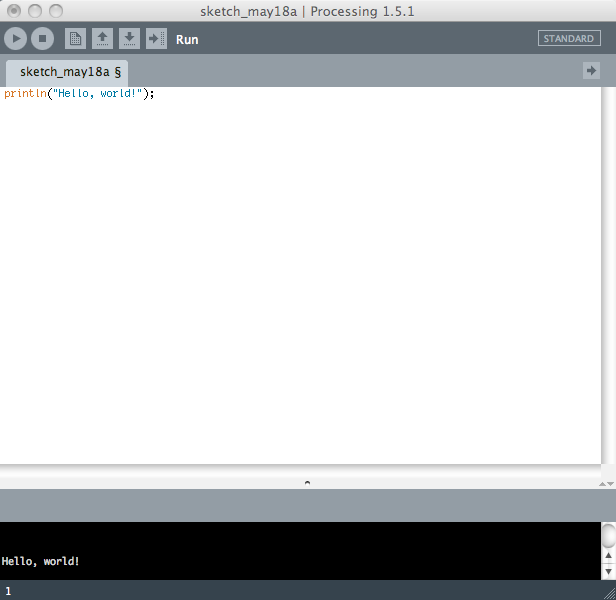
Screenshot of Processing's editing window containing the code with the output of the Hello world program.
Click for text.
Code Displayed
println("Hello, world!");
Output Displayed
Hello, world!

Click here for a transcript of the Hello World Program video.
Here is my first program. Println, open parenthesis, double quotes, thing, that I want to have printed to the console, end the parentheses, and the close semicolon. That's it! I run it by clicking this button. And, the phrase that I typed in double quotes pops up right here, and this little blank window pops up here. We'll talk about what that's for later on. I can stop the program from running by just getting rid of that, or pressing this button.
Try it yourself. Did it work? Yay! You wrote a program. Not too shabby.
You probably noticed a small grey window also popped up next door to the editing window. Let's explore what that's all about next.
1. Plot some shapes to the display window
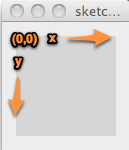
That little window that popped up is the display window. When you write a program that creates something to look at, it will show up there. By default, Processing sets the origin at the top left corner. The x axis increases to the right and the y axis increases downwards. Increments along the axis are given in pixels. The default window, as shown below, is 100 x 100 pixels.
Let's plot some shapes to the window. Processing has some intrinsic functions to plot primitive shapes. Here is a program that introduces four of them to get you started.
- First, click the "stop" button, which is the one next to the run button that has a little square in the middle of it. The display window should disappear now.
- Copy the lines below exactly as I have written them into the editing window:
println("Hello, world!"); point(50,50); line(10,20,10,70); ellipse(70,20,40,20); rect(60,65,10,30); - Click the run button. Now let's check out that display window. It should look like this:
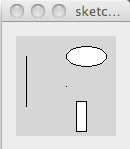
There is a point at x=50, y=50. There is a line that extends from x=10, y=20 down to x=10, y=70. There is an ellipse whose center is at x=70, y=20 and whose horizontal axis has a diameter of 40 pixels and whose vertical axis has a diameter of 20 pixels. There is a rectangle whose top left corner is at x=60, y=65, and that is 10 pixels wide and 30 pixels high.
The program you just wrote had four commands, one on each line. Processing executed them in order, then stopped. The first command, println(), tells Processing to print whatever is inside the parentheses to the console. In our example, we printed text. We put all the text inside double quotes so that Processing would know that it is text. We will learn how to print other things to the console later when we explore different variable types.
The next four commands told Processing what kind of a shape to draw and where to draw it. Each of those simple shape commands needs to have a certain number of arguments in order to work. The arguments are the numbers inside the parentheses. For example, the command point() takes 2 arguments and they correspond to the x and y location where Processing should place the point. So,
point(50,50);
tells Processing to place a point 50 pixels to the right of the origin and 50 pixels down from the origin.
Quiz yourself
The other shapes in the example program each take 4 arguments. line() needs to know the (x,y) pair of the beginning of the line and the (x,y) pair of the end of the line. ellipse() needs to know the (x,y,) coordinates of the center of the ellipse and the diameters of each axis. rect() needs to know the (x,y) coordinates of the top left corner of the rectangle, the width, and the height.
Quiz yourself
Lesson 1: Primitive Shape Attributes
Syntax introduced: size(), background(), stroke(), strokeWeight(), fill(), noStroke(), noFill()
0. Modify Primitive Shapes
Now let's explore ways to change the look of the various primitive shapes introduced on the previous page. The size() function changes the size of the display window. It takes two integer arguments which are the width and height you want, in pixels. Use the background() function to change the color of the display window. It takes one integer argument, a number ranging from 0 (black) to 255 (white). You can also make the background an actual color, but let's save the discussion of color for the next lesson.
For dealing with the primitive shapes, stroke() works to change the color of the outline of the shape, and fill() does the same for the inside. The command strokeWeight() controls the thickness of the outlines of the shapes, in pixels.
Check out the program below and its associated screenshots similar to the one on the previous page except that I've used stroke(), fill() and strokeWeight() to change the look of the drawing.
size(200,200);
background(200);
stroke(255);
strokeWeight(3);
point(50, 50);
line(10,20,10,70);
fill(0);
ellipse(70,20,40,20);
strokeWeight(1);
fill(100);
rect(60,65,10,30);
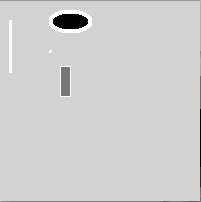
1. Stuff that matters: Command Order, Punctuation, Case
Now is a good time to take a short digression regarding syntax when writing code. First let's talk about command order. In the program above, each line is a command, telling Processing to do something, such as to draw a shape to the display window at a certain position. Processing reads each command in order and then moves to the next one. If you specify something like the fill value or the stroke value, Processing keeps that value in its memory and continues to use it until you specify a different value and then Processing will start using the new value instead. The fill and stroke values are in greyscale that ranges from 0 (black) to 255 (white). White is different from having no value at all. If you want a shape with no fill or no stroke, you need to use the commands noFill() and noStroke().
Notice the section of the program above that goes like this:
fill(0);
ellipse(70,20,40,20);
strokeWeight(1);
fill(100);
rect(60,65,10,30);
The first fill() command tells Processing to make the inside of any subsequent shape black. So when it draws the ellipse, that ellipse is filled with black. Then later on we change the fill color to 100, a nice medium grey, and so the rectangle we plot after that gets that nice grey for its insides.
Now let's talk about another important issue. You have noticed by now that I end all my commands with a semicolon. This is approximately equivalent to ending a sentence with a period when you write in English. The period at the end of the sentence tells the reader that this thought is over and now we are moving to the next thought. That's what the semicolon does for you in Processing. Try removing one of the semicolons and running the program again. Here's what you get:
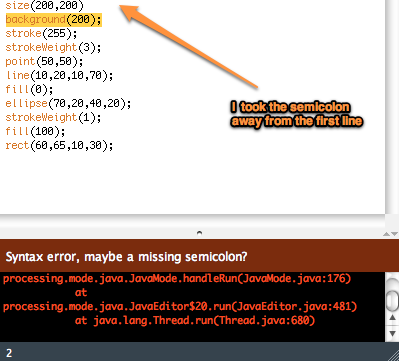
A program with a missing semicolon and the error output. Click for text.
Code Displayed
I took the semicolon away from the first line.
size(200, 200)
background(200);
stroke(255);
strokeWeight(3);
point(50,50);
line(10,20,10,70);
fill(0);
ellipse(70,20,40,20);
strokeWeight(1);
fill(100);
rect(60, 65, 10, 30);
Error Displayed
Syntax error, maybe a missing semicolon?
processing.mode.java.JavaMode.handleRun(JavaMode.java:176)
at
processing.mode.java.JavaEditor$20.run(JavaEditor.java:481)
at java.lang.Thread.run(Thread.java:680)
You don't get a display window, bummer! Processing got confused, but the editor smartly guesses that maybe a missing semicolon is the problem, tells you so, and then highlights where it thinks the problem is. A missing semicolon is one of the most common mistakes. I do it all the time. Luckily it's a really simple problem to correct.
Case matters, too. What if you wrote strokeweight instead of strokeWeight? Does it matter? Yes, it does. Try going back to your code and write that command with a lowercase "w" and see what happens.
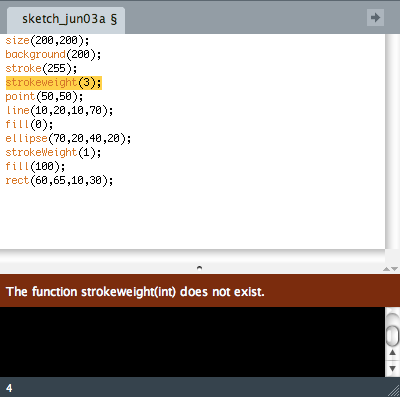
A program with a incorrect case in strokeWeight() and the error output. Click for text.
Code Displayed
The 4th line uses strokeweight() instead of strokeWeight(). The W in the command should be capitalized, but is incorrectly coded with a lowercase w.
size(200,200);
background(200);
stroke(255);
strokeweight(3);
point(50,50);
line(10,20,10,70);
fill(0);
ellipse(70,20,40,20);
strokeWeight(1);
fill(100);
rect(60,65,10,30);
Error Displayed
The function strokeweight(int) does not exist.
This time, the program does not run, and an error message tells you that there is no such thing as "strokeweight." Case matters. A person reading your code would have probably said, "Oh, you meant strokeWeight, not strokeweight, fine, okay, I get it." But Processing can't do that. Human beings can understand the ambiguity inherent in human languages and that's why jokes with double entendres are funny. For example, during the runup to the 2008 presidential election, many pundits commented on Michelle Obama and her fashionable outfits. One journalist wrote, "Why are Mrs Obama's sleeveless shirts such a big topic of conversation? After all, the second amendment gives her the right to bare arms." Ha ha ha. But even if you thought this was corny, you got it right? You understand that "bear" and "bare" are homophones and that "arms" can be interpreted two different ways. But the Processing compiler would not be able to explain this joke because it can only interpret each command exactly one way. This is true in general when you write programs in any language for a computer to execute.
2. Formatting that Doesn't Matter: Whitespace, Carriage returns
Now, having said that, there are some things that Processing does not care about. Whitespace is chief among these. Try doing something to the program above such as writing fill( 100 ) instead of fill(100). Processing doesn't care. Same if you hit return a bunch of times in between commands.
I think it's a good idea to keep in mind that first of all, you have to follow rules for punctuation and case or else Processing can't understand what you want it to do. Also, at some point you are going to want to share your program with another person and it is helpful if that person can read it easily. So if you monkey around by putting spurious spaces in various places, it may be true that Processing doesn't care, but it also might make it hard to read your code. This will make more difference later on when you start writing more complicated blocks of code.
3. Your turn!
Time to extend what you've learned so far. Note that I am only asking you to submit two of the exercises below for me to look at. I still recommend working through all of them because that is the best way to learn to program and also they build on each other. In fact, one way to approach this set of exercises is to write the program in Exercise 1.1, then modify that same program and turn it into Exercise 1.2, and so forth.
Exercises
1.1 Write a program that makes a dark grey display window that is 200 x 400 pixels.
1.2 Tangent ellipses: Write a program that draws a display window, draws an ellipse in each corner whose outline is tangent to the edges of the window.
1.3 Tangent ellipses 2: Modify the above program to change the stroke (thickness) of the outlines of the ellipses.
1.4 Tangent ellipses 3: Modify the above program to change the fill (grey value) of each ellipse.
1.5 Write your name: Write a program that draws a display window and uses primitive shapes (points, lines, rectangles, ellipses) to write your name to the display window.
Turning in your work:
Upload the .pde files for Exercises 1.4 and 1.5 to their appropriate assignment dropboxes in Canvas by the date indicate on this lesson's overview page. Name them like this: lastname1_4.pde and lastname1_5.pde, so for example my program for Exercise 1.4 would be called: richardson1_4.pde. Note that the default file extension is already ".pde" so you don't have to add that part yourself when you are saving your file with a name.
Lesson 1: Summary and Final Tasks
In this lesson, you downloaded Processing and wrote your first programs! Getting started is always the highest hurdle with anything new.
Reminder - Complete all of the Lesson 1 tasks!
You have reached the end of Lesson 1! Double-check the to-do list on the Lesson 1 Overview page to make sure you have completed all of the activities listed there before you begin Lesson 2.