2.1 Symbolize the UP_BUILDINGS layer
2.1 Symbolize the UP_BUILDINGS layer
First, you'll give the buildings layer a more appropriate color.
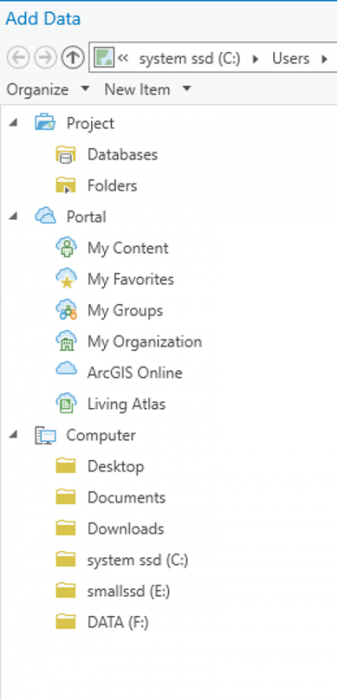
Credit: 2021, ArcGIS [1]
- If necessary, open the UniversityParkCampus project in ArcGIS Pro.
- On the contents pane, uncheck all layers but UP_BUILDINGS. Click the colored rectangle symbol under the UP_BUILDINGS layer.
The Symbology pane opens to the Gallery.
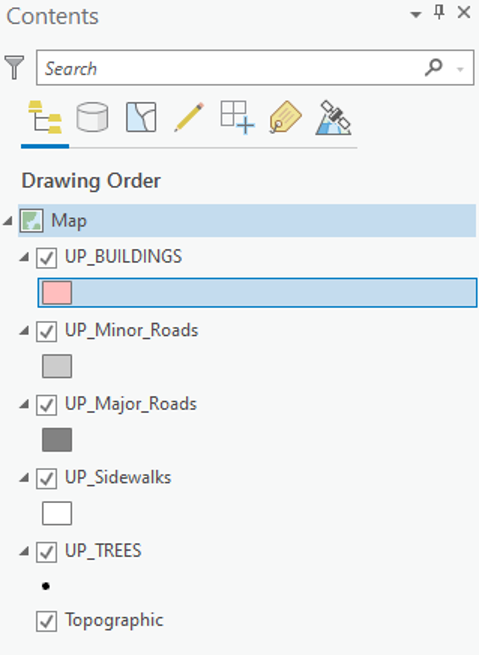 Credit: 2021, ArcGIS [1]
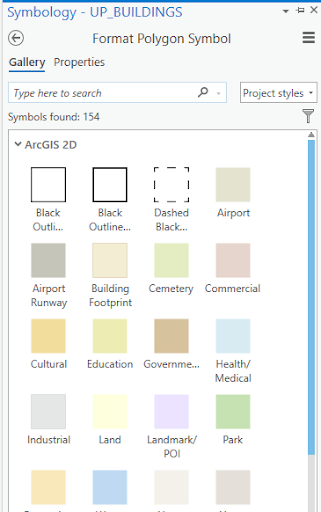 Enter caption hereCredit 2021, ArcGIS
 - In the search box, type sienna and press Enter.
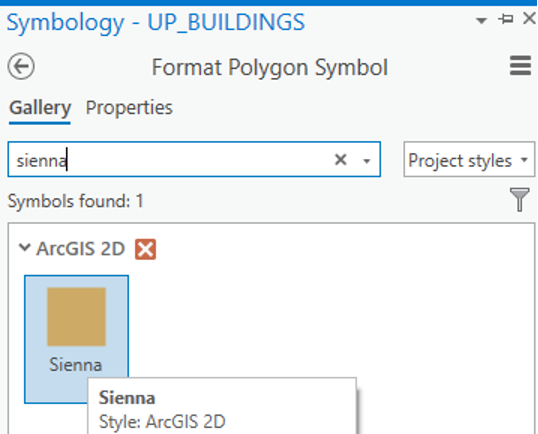 Credit: 2021, ArcGIS [1]
 - The result is that the symbology for buildings will change to orange-brown. Feel free to explore further color options.
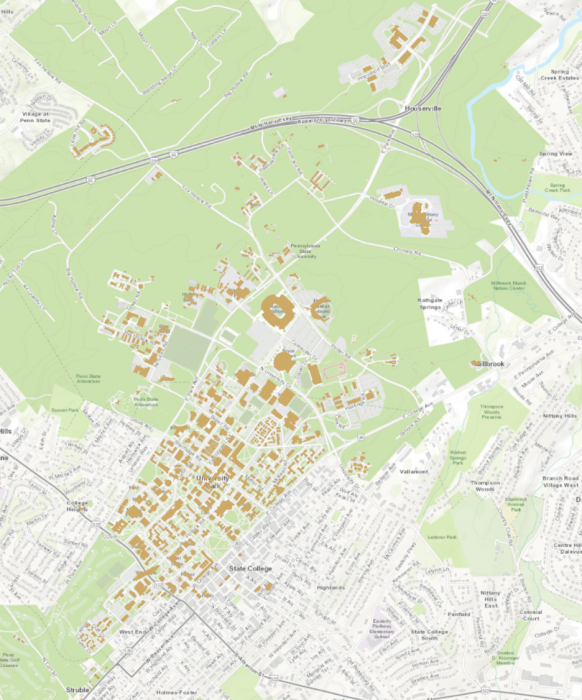 Credit: ChoroPhronesis Lab [2]