Walkthrough: Using Unity to Build a Stand-Alone Windows Application
Walkthrough: Using Unity to Build a Stand-Alone Windows Application
Introduction
In this walkthrough, we will use Unity to build a stand-alone Windows application from a SketchUp model. It will be a rather simple application, just featuring a keyboard-controlled camera that allows for steering the camera in a 3D scene with a single building.
Close Unity for now and download the Old Main model we are going to use here as a SketchUp .skp file. [1] You should still have the Unity project “MyFirstUnityProject” from the beginning of the lesson with just an empty scene ("SampleScene" in the scenes folder). This is what we will use for this walkthrough. The first task we have to solve is to export the 3D model from SketchUp into Unity.
Note: If the Old main model is too heavy for your personal computer, you can use the model for Walker Laboratory [2].
Exporting from SketchUp into Unity
Exporting from SketchUp into Unity
Unity allows for importing 3D models in different formats. Typically the files with the 3D models can be simply put into the Assets folder (or some subfolder of the Assets folder) of a project and then Unity will discover these and import them so that they show up under Assets in the project. Until very recently, there was no support to directly import SketchUp .skp files into Unity and, therefore, 3D models had to be exported from SketchUp in a different format as shown in the figure below.
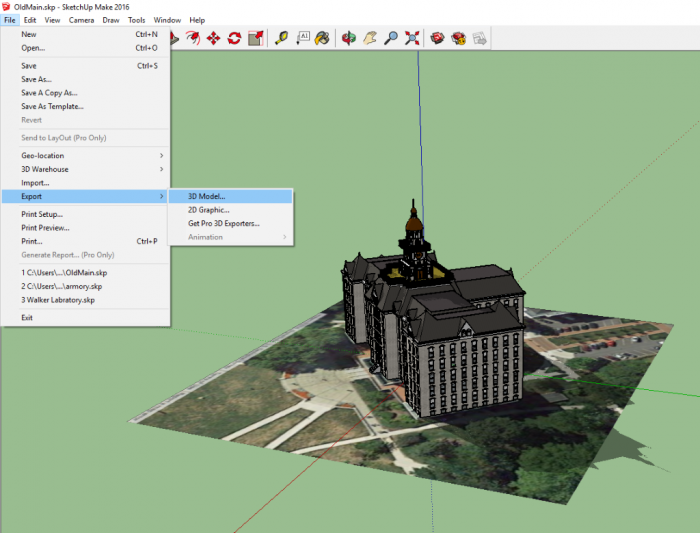
However, direct import of SketchUp .skp files is now possible. So we are simply going to put the downloaded .skp file into the Assets folder. Before that, please make sure that neither Unity nor SketchUp are currently running! Then perform the following steps:
- 4.1 Copy the downloaded file OldMain.skp into the “Assets” folder under “…Documents\UnityProjects\MyFirstUnityProject” (adjust the location where you have saved your project if it's not in Documents)
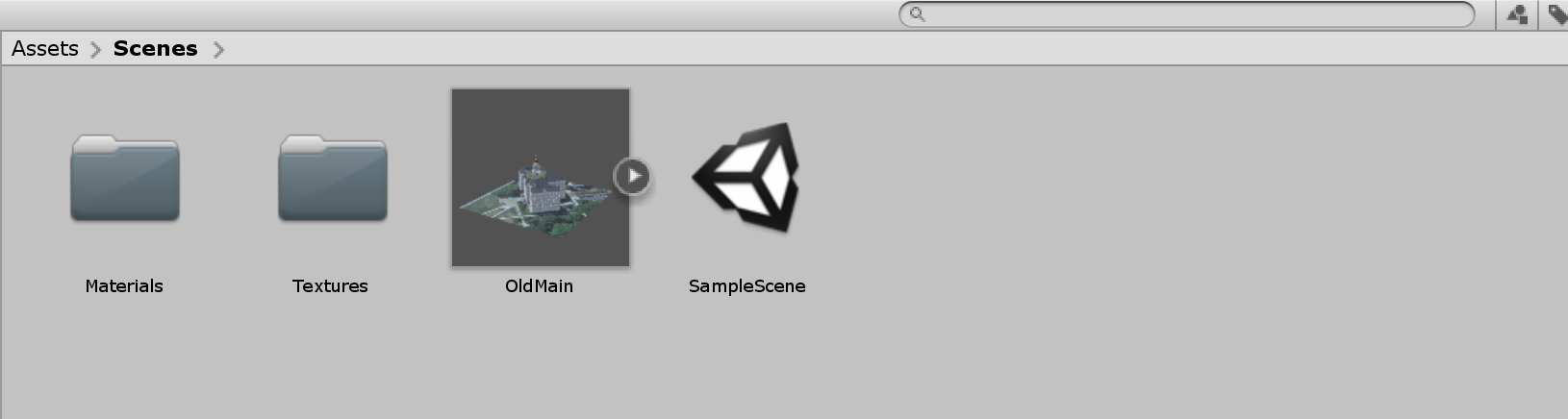
- 4.2 Start Unity again and open the “MyFirstUnityProject” project. Unity will immediately recognize the new file in the Assets folder and import it. If you look in the Assets pane of the Project Window, you will see that several things have been added there in addition to the SampleScene. The two folders called “Materials” and “Textures” contain the components required to render the Old Main model. The asset for the Old Main 3D model itself will appear under the name “OldMain” as an icon with a little arrow on the right side. Selecting it will show a preview and settings for importing the model into the Scene in the Inspector Window.
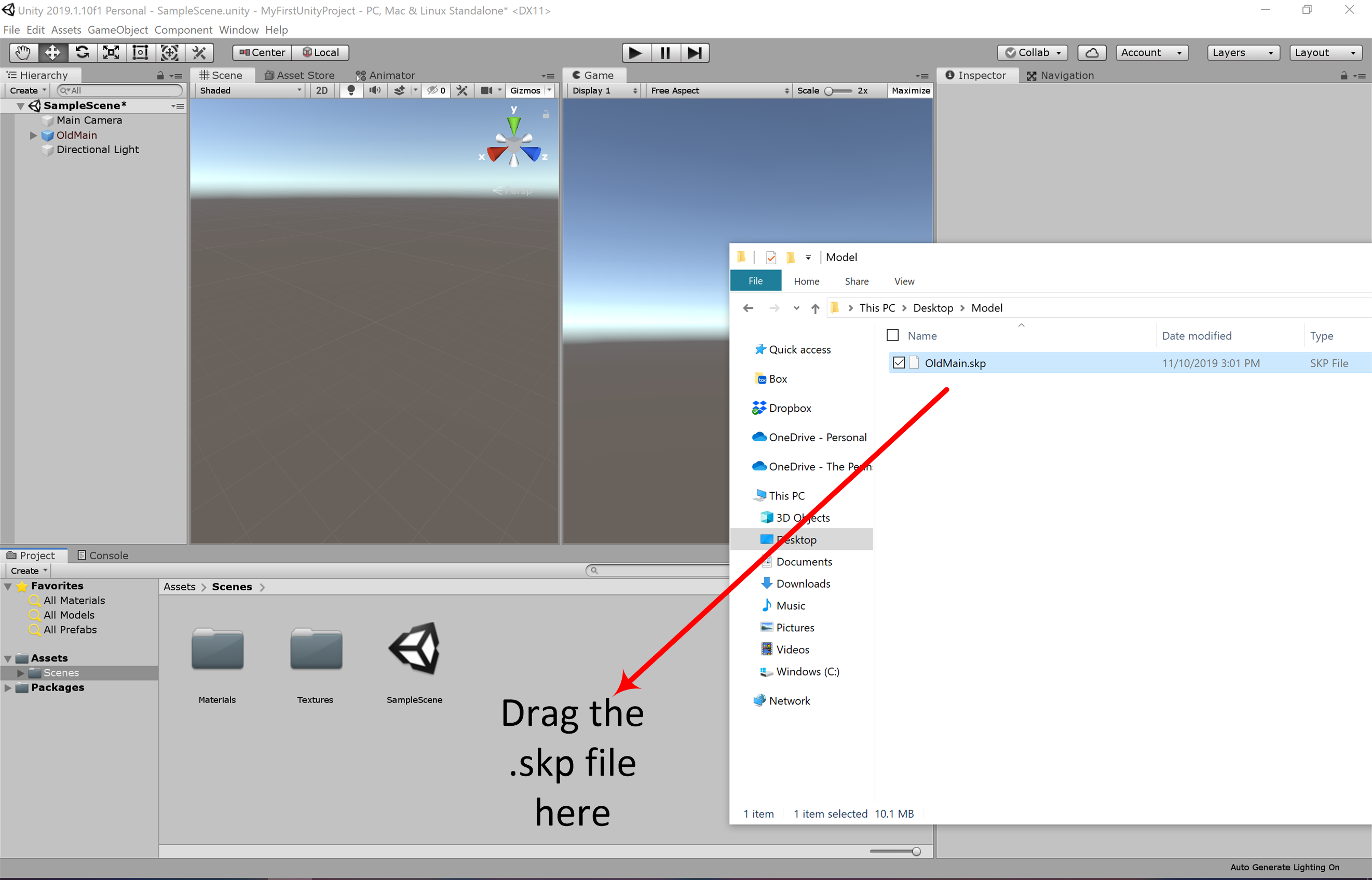
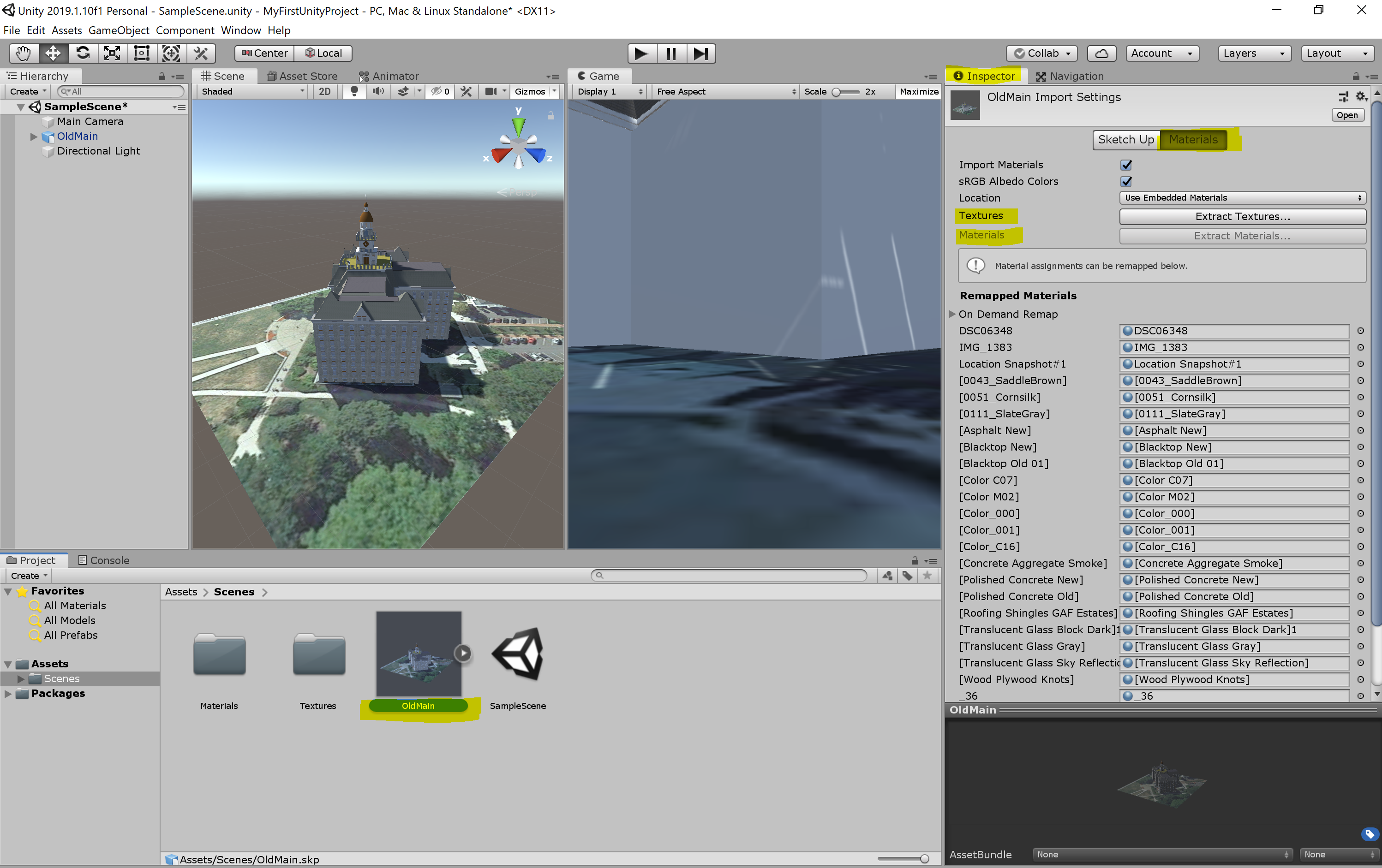
If the above method does not work for your case, you can always simply add the skp model into the editor by dragging and dropping it into the folder structure. You may have noticed that the Building object we have imported looks rather dull and is missing lots of textures and materials. To fix this problem, we need to extract all the materials and textures from the prefab of the model so that Unity knows how to map them. Select the prefab of the model you have imported into your folder. You can see that in the inspector menu it is detected that this is a SketchUp model, but all the materials for the individual components of this model are missing (labeled as none).
To fix this, click on the “Extract Textures …” button in the inspector panel. Create a new folder in the pop-up window and rename it to “Textures”, and then click on “Select Folder”. Do the same for Materials by clicking on the “Extract Materials …” and creating a new folder called “materials”. Once done, the model should have all the materials and textures added to it.
Adding the Model to the Scene
Adding the Model to the Scene
The next thing we are going to do is place the Old Main model in the Scene and make a few more changes to the Scene.
- 5.1 To add the model to the Scene, drag it from the Assets pane to the Hierarchy Window and drop it somewhere into the area below the “Main Camera” and “Directional Light” GameObjects. Most likely, things will look a bit strange in the Scene view because the building model is so large that it contains the current viewing position as well as the locations of the camera and lighting source. So as a first step to fix this, double-click the OldMain object in the Hierarchy Window and then zoom out a bit until you see the building somewhat similar to what is shown in the screenshot below.
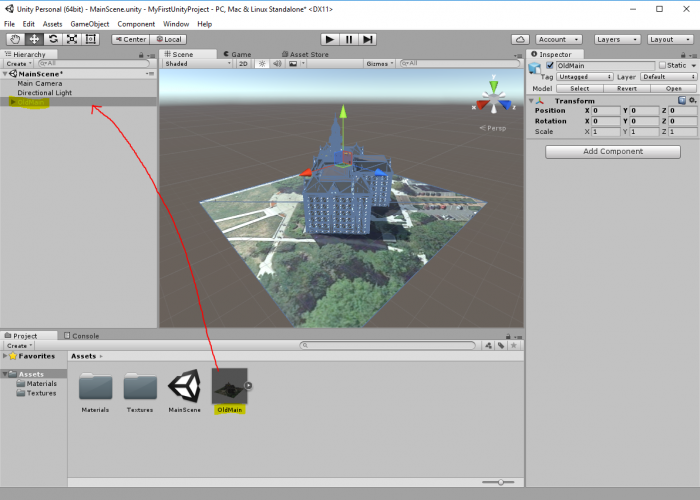 Credit: Unity 3D [4]
 - 5.2 While we now can see the entire building in the Scene Window, the camera and lighting source are still inside the building. So what you should do is scale down the “OldMain” object by a factor of 0.04. You can do this by selecting “OldMain” and directly editing the scale values in the Inspector Window. An alternative approach would have been to use the Scaling Tool as explained in one of the videos earlier in the lesson. But since we want a factor of exactly 0.04, directly editing the numbers is easier here. In addition, we want to turn the building around the Y axis by 180° so that the side facing the sunlight is the front side.
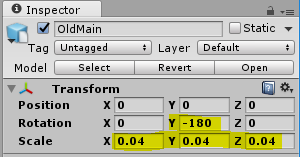 Credit: Unity 3D [4]
 -
5.3 If you select the “MainCamera” and look at the Preview (or try out Play Mode), you will see that this is now quite a bit away from the building. So let us place the camera such that we have a nice view of the building from the sunny side and the building roughly fills the entire picture. Remember that one way to do this is by changing the Scene view to the desired perspective and then use “Align With View”.
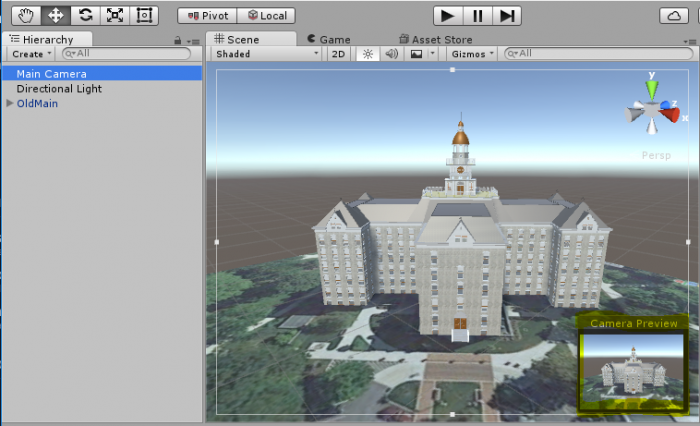 Credit: Unity 3D [4]
 - 5.4 Finally, press Play to enter Play Mode and have a quick check whether things are looking good in full size. You can click on the small drop-down icon at the top right of the Game Window and click “Maximize” to maximize the window. Stopping Play Mode will switch back to the Scene Window and the normal layout.
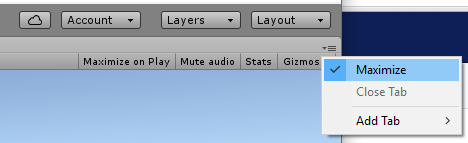 Credit: Unity 3D [4]
Making the Camera Keyboard-Controlled
Making the Camera Keyboard-Controlled
To make things at least a little bit interactive, we now want to be able to move the camera freely around in the scene using mouse and keyboard. Such interactivity is typically achieved by adding script components. So in this case, we want to attach a script to the “MainCamera” object that reads input from the mouse and keyboard and adapts the camera position and rotation accordingly.
We won’t teach you scripting with C# for this functionality because we can reuse some existing script. A resource for Unity scripts and extensions outside of the Asset Store is the Unity3D Wiki. As it happens, we find a script published under the Creative Commons Attribution-ShareAlike license there to realize the free-flight camera control we are looking for. The script can be downloaded here [1].
Let us have a very short look at the code. If you have some programming experience, you will recognize that there are a bunch of variables defined early on in the script (public float … = …) that will determine things like movement speed, etc. of the camera. These variables will be accessible from the Unity Inspector Window once we have attached this script to our camera. The actual functionality to control the camera is realized in the function Update() { … } . GetAxis(…) is used to read information from the mouse, while GetKey(…) is being employed to check the status of certain keys on the keyboard. The content of the variable called “transform” roughly corresponds to what you always see in the Transform section of the Inspector Window and is used here to change the camera position and rotation based on the user input. The Update() function of a script that is attached to a GameObject in the scene will be called for every tick (= rendered frame) when the project is executed. So in Play Mode, the keyboard and mouse will be constantly checked to achieve a smooth control of the camera.
Here are the steps to add this code as a script asset to our project and then attach it to the camera object in the Scene:
- 6.1 There are several ways how the steps to add the code can be performed. We here start with adding a new C# script file to our projects assets. Use "Assets -> Create -> C# Script" from the main menu. This adds a script to your Assets folder and it will appear as an icon in the Assets pane at the bottom of the editor. You are now supposed to give the script a name. It is important that the name of the script file is the same as that of the class being defined in the file, which in this case is “ExtendedFlycam”. So please use this name and make sure that the capitalization is correct (upper-case E and F).
 Credit: Unity 3D [4]
 - 6.2 You can click on the script icon to see the script code in the Inspector Window. Currently, this is just the standard template code for a Unity script that Unity generated automatically. Now double-click the script icon, which will open the script in Visual Studio. You may have to switch over to Visual Studio manually if the window doesn’t show up in the foreground on your screen. (Opening the visual studio could take a few minutes, and you might be asked to sign in, if you do not have an account, go ahead and create one, or explore the other options provided to you. You should be able to create a free personal account to use visual studio)
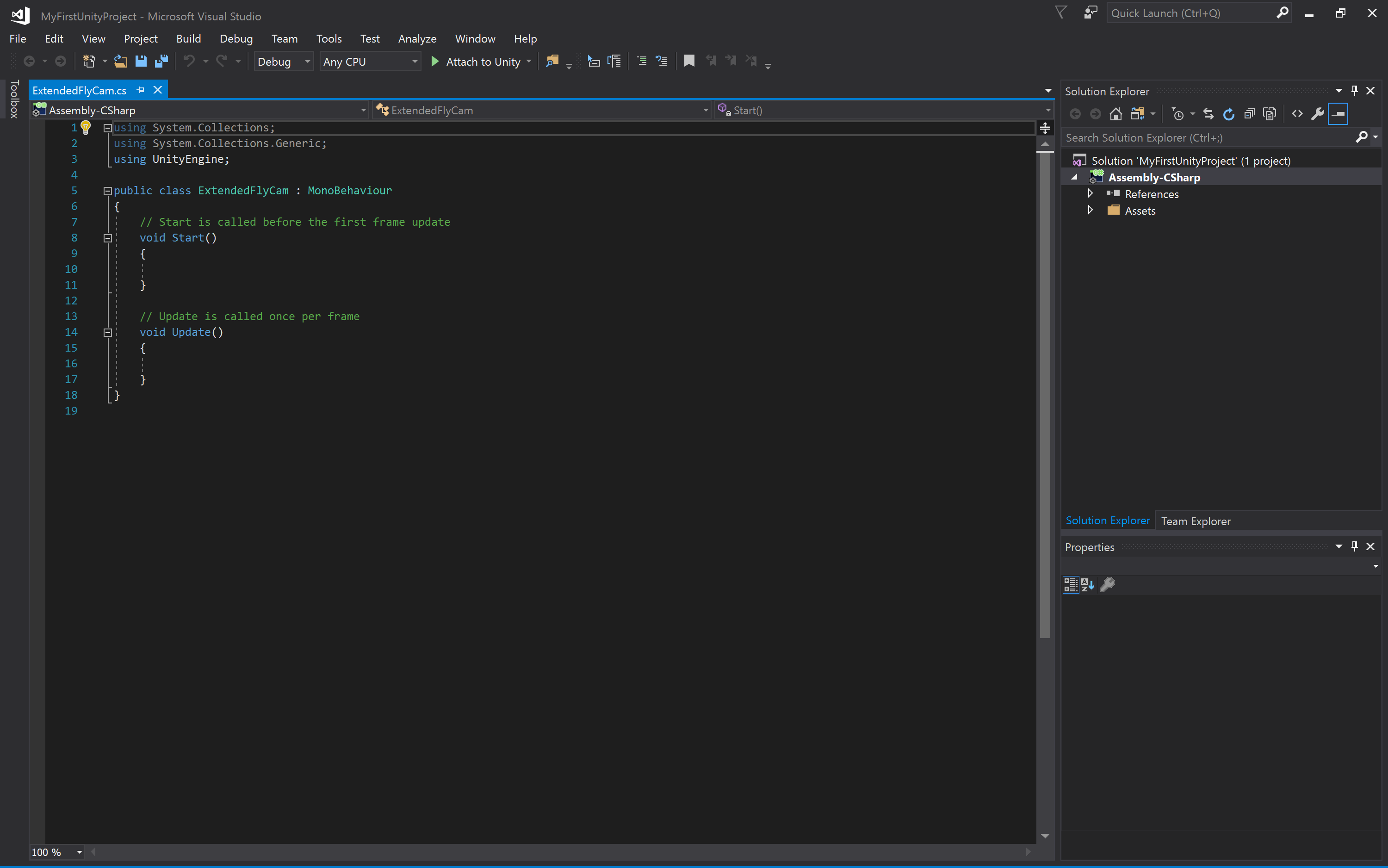 Credit: Visual Studio [5]
 - 6.3 You now see the template code in Visual Studio. Select everything and delete it so that you get an empty document. Then use copy & paste to copy the entire code from the text file you downloaded in the browser into the script window in Visual Studio. Press CTRL+S to save the changes, then switch back to Unity. Unity may report some warnings because some of the code uses deprecated functions but let’s ignore that here.
- 6.4 We now need to attach the script as a component to the “MainCamera” object. To do so, you can simply, select the “MainCamera” object and then drag the script from the Assets pane to the free area in the Inspector Window where the “Add Component” button is located. The script now appears as “Extended Flycam (Script)” in the Inspector Window and here you see the variables we talked about at the beginning exposed as parameters.
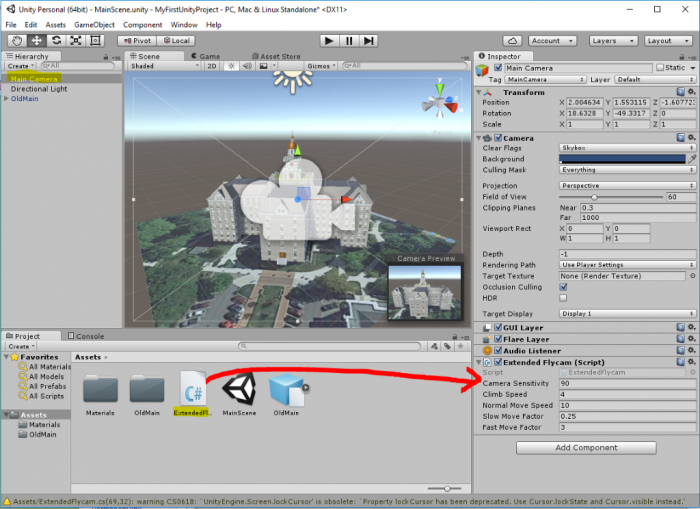 Credit: Unity 3D [4]
 - 6.5 It is now time to give this a try: Please enter Play Mode. You should immediately be able to turn the camera with the mouse and move the camera forward, backward, and sideways using the keys W, S, A, D or alternatively by using the cursor keys.
So you can now move the camera around the building (and actually also below it or into the model). The control is maybe a bit sensitive, so you may want to change some of the parameters of the camera script a bit (e.g. sensitivity and move speed). Just play around with the values. Since the mouse is now taken for the camera control, the best way to exit Play Mode is by pressing CTRL+P. - Now build a Windows application to share with your instructor for your assignment. Make sure that you zip the folder before you upload it.