Orientation
About the Course Website
About Canvas
About Canvas, General Orientation
Following is information about Canvas, Penn State's Learning Management System (LMS). In Canvas, registered students may consult course calendars; communicate with instructors, teaching assistants, and fellow students; submit assignments; receive feedback from the instructor and teaching assistant; take online quizzes and surveys; and check assignment scores and course grades.
Quick Guide for Students
If you are new to Canvas, it is strongly recommended that you complete the PSU: Canvas Student Orientation [1].
You may also want to review the Canvas Student Guide [2] to acclimate yourself further, and watch the following video:
Video: Canvas Overview for Students (3:29)
Credit: Canvas Overview for Students [3] from Canvas LMS [4].
In this video, you will learn how to navigate your Dashboard, courses, and Global Navigation Menu in Canvas.
When you log in to Canvas, the first thing you see is the Dashboard, which provides a high-level overview of your current courses. The Dashboard can be displayed in three different viewing options.
Card View displays a course card for each of your favorite courses. Each card can include clickable icons for Assignments, Announcements, Discussions, and Files. List View displays an agenda view of graded items from your courses, as well as any non-graded items your instructors designate for a course To Do list. You can also add your own items to the agenda.
"Recent Activity View" displays a stream of recent notifications from all your courses, including announcements, conversations, assignments, discussions, and peer reviews.
You can also access the course grades page from the Course Card and Recent Activity Views by clicking the View Grades button. The Grades page displays grades for all of your courses. To view grade details for a specific course, click the name of the course.
To view a course, click the Courses link in Global Navigation and click the name of the course you want to view. The course opens to the home page set by your instructor.
You can use the Course Navigation links, breadcrumb navigation, or the sidebar to navigate to different areas of the course.
The sidebar includes a To Do list that displays links to announcements and other items that require action in your courses, such as assignments, quizzes, discussions, and pages.
If your course includes student groups, you can view a list of your groups in Course Groups. Click the group name to view the group homepage. View recent assignment feedback in Recent Feedback. Click the assignment name to view feedback in the Submission Details page.
Canvas displays a Global Navigation Menu that gives you direct access to your courses and other areas of Canvas.
Click the Account link to log out of Canvas, specify your notification preferences, upload and view personal files, modify your user settings, manage ePortfolios, obtain a QR code to log in to the Student app, view global announcements, and enable a high-contrast user interface.
Click the Dashboard link to return to the Canvas Dashboard. Click the Courses link to quickly access your favorite courses and view a list of all your courses. Click the Groups link to access groups in which you are enrolled or view a list of all your groups.
Click the Calendar link to view your personal calendar and course calendars. Click the Inbox link to view and send messages to your instructors and peers within Canvas. Click the History link to view a list of course content and content areas you have viewed within the last three weeks.
Click the Help link to access help resources for your institution.
This guide covered an Overview of Canvas for students.
Supported Browsers and Computer Configuration
The Canvas Help Center provides extensive, up-to-date documentation [5] on making sure your computer is configured properly for Canvas. Failure to follow these recommendations may result in significant issues while viewing materials, taking assessments, and using drop boxes. Use of unsupported browsers is at your own risk.
Course Communications
Meaningful interactions among students and instructors are the hallmark of a successful online class. Canvas supports several types of communication, as described below.
In addition, registered students have Penn State e-mail accounts (<Access Account ID>@psu.edu) that they need to monitor for any official communications that come from the University or from the Penn State World Campus.
Below is a list of communication tools available in Canvas. This course may or may not utilize all of the options listed.
Announcements [6]
These are messages from your instructor that contain important information. Current announcements can be accessed through the Announcements link in Canvas. Announcements may highlight assignment due dates (also published in the course Calendar), lesson recaps, a preview of an upcoming lesson and other essential course information.
Inbox [7]
The Inbox is the equivalent of e-mail in Canvas. It's great for a quick e-mail to another student, instructor, or a whole team. Keep in mind that the text editor is very minimal and does not have much formatting capability. Please use the Canvas Inbox only for private messages to instructors or fellow students.
- Need more help using course mail? Review the Canvas Student Guide section on the Inbox [8].
Discussions [9]
Discussions allow students to interact with the instructor and other classmates. Threaded discussions allow multiple posts and replies. New posts appear in the Course Activity Stream page, so you will know when something has been posted.
- In general, questions and comments about project assignments and course content should be shared with the entire class via the discussion forums. That way, everyone can benefit from the discussion.
- Need more help using discussion forums? Review the Canvas Student Guide section on Discussions [9].
Note:
Whenever you post a message in a forum or send course mail, please use a descriptive subject line. Subject lines that include the gist of a question or comment increase the chances that students and instructors can retrieve the messages we're looking for. Poor subject lines, such as "Question" or "Lesson 1," are not very useful as search keywords. When replying to a prior message, consider whether or not the subject line should be altered to indicate the content of your reply!
Setting Communication Preferences
Your Canvas Profile and Notification Preferences
Your Canvas Profile and User Settings let you control your personal information in Canvas. Take a few minutes to personalize your Canvas profile and set your Notification Preferences by following the instructions below.
| Task | Instructions |
|---|---|
| Personalize your Canvas Profile |
|
| If you use PSU OneID |
Students who are enrolled with OneID will not receive emails automatically from Canvas due to not having PSU email access. We advise that students set up a personal email address for notifications.
|
| Set your notification preferences |
You have the option to select how, when, and for what information you would like to receive notifications. This can be very helpful when keeping track of items such as discussion posts, assignment due dates, and exams. Visit Canvas Notification Preference Support [11] and follow the instructions for setting up your notification preferences. The video below this table provides additional information. |
| Set your timezone |
|
| Download the Canvas App | For information on using the app by device, please see the following:
|
Video Tutorial: How do I manage my Canvas notification settings? (3:24)
Narrator: How do I manage my Canvas notification settings?
In global navigation, click the Account link. Then click the Notifications link.
On the Notifications Settings page, you can manage how you receive notifications for your Canvas account, and/or manage how you receive notifications for individual courses.
A banner describes the settings you are managing. Another banner indicates the times when daily and weekly notifications will be delivered. To dismiss a banner message, click the close icon.
By default, the "settings for" dropdown menu displays the Account option. Account-level notification settings apply to all of your Canvas courses; however, any course-specific notification settings override account notification settings.
You can view your current account-level settings. Account-level notification types are listed by category. There are notifications for course activities, discussions, conversations, groups, scheduling, and conferences.
You can also view your contact methods, such as email addresses, and push notifications for mobile devices.
Each notification has a default delivery frequency setting. To view the current notification delivery frequency for a notification type and contact method, hover over the notification icon.
To view details for a notification, hover the cursor over the notification name. View details such as the activities that trigger the notification.
Each notification is set to a default setting.
To change the notification for a contact method, locate the notification and click the icon for the contact method.
To receive a notification right away, select the "Notify immediately" option. These notifications may be delayed by up to one hour in case an instructor makes additional changes, which prevents you from being spammed by multiple notifications in a short amount of time.
To receive a daily notification, select the "Daily summary" option. The date and time of your daily notifications are posted in a banner at the top of the notification settings page.
To receive a weekly notification, select the "Weekly summary" option. The date and time of your weekly notifications are posted in a banner at the top of the notification settings page.
If you do not want to receive a notification, select the "Notifications off" option.
Unsupported notification types display the unsupported icon. You cannot manage unsupported notifications.
If you have enabled "Push Notifications" in the Canvas student mobile app on an Android device or on an IOS device, you can manage your settings in the "Push Notification" column. Push Notifications can only be sent to your mobile device right away or not at all. Daily and weekly notification options are not supported.
Some categories include limited availability for push notifications. For full details about supported notifications for push notifications, refer to the Canvas notifications resource document.
This guide covered "How to manage my Canvas notification settings.
Technical Requirements
Equations
This course uses many equations. To view the equations correctly, you should use one of the following browsers.
- Chrome
- Edge
- Firefox
- Internet Explorer (version 11 or newer)
- Safari
If you use any other browsers, there will be pages where the equations might not render properly.
Customize Your Zoom Settings
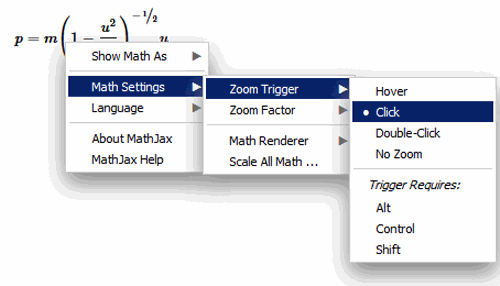
You can customize your browser to zoom in on the equations by following the steps below.
- Right-click (Mac users Ctnl-click) on the formula and select "MathSettings."
- Choose "Zoom Trigger" to tell the equation to zoom when you either hover, click, or double-click on the equation.
- Choose "Zoom Factor" to set the zoom factor (125% - 400%).
Resources for Online Learning
Summary and Final Tasks
Summary
add summary here
Reminder - Complete all of the Lesson 1 tasks!
You have reached the end of Lesson 1! Double-check the to-do list on the Lesson 1 Overview page to make sure you have completed all of the activities listed there before you begin Lesson 2.