Canvas
Lesson Overview
Lesson Overview
The learning management system for EMSC 302 is Canvas. Think of Canvas as a hub for course-related information - you can link to your syllabi, access your course grades, post to discussion forums, submit your assignments, and more.
Note
Feel free to refer back to this course or the New Student Orientation Canvas pages anytime in your tenure here at Penn State. The information will always be here for you to review.
What will we learn?
By the end of this Lesson, you should be able to:
- establish your notification preferences and subscribe to discussion forums in Canvas;
- understand where to access your grades, communicate with your peers, and submit your assignments in Canvas.
What will be due?
Refer to the Activities page for more information on the assessments for this lesson.
Questions?
If you have any questions, please post them to the "EMSC 302 Assignment/Lesson Questions?" discussion forum or e-mail the instructor (if the question is personal in nature).
About Canvas
About Canvas
In the New Student Orientation, [1] you learned about Canvas, and maybe you completed the Canvas Orientation Course too. The following information is to help you be as connected as possible to your courses, classmates, and instructor.
Consider completing the Canvas Orientation Course [2] to get the most out of the LMS!
Functionality
The layout of Canvas is fairly simple and straightforward. Let's go over some of the basics so that you'll know where to look for everything you need. And, of course, if you're confused, don't be afraid to ask for help (the Questions Discussion Forum in Canvas would be a great place to post if you need help!)
You'll see that some of the functionality (shown below in the dark gray bar running down the left) is Canvas-level functionality - these are features that will always be there, no matter what course you're viewing in Canvas. They include: Dashboard, Courses, Calendar, etc.
Then, to the right, in white, (in the column right next to the gray bar), you'll see the features specific to our class: Home, Syllabus, Announcements, Modules, Grades, etc.). Similarly to any on-campus course you've ever taken, you'll find that your online courses may all be set up slightly differently. However, a good understanding of some of these basic features in Canvas will help you navigate more easily to find what you need.
Canvas
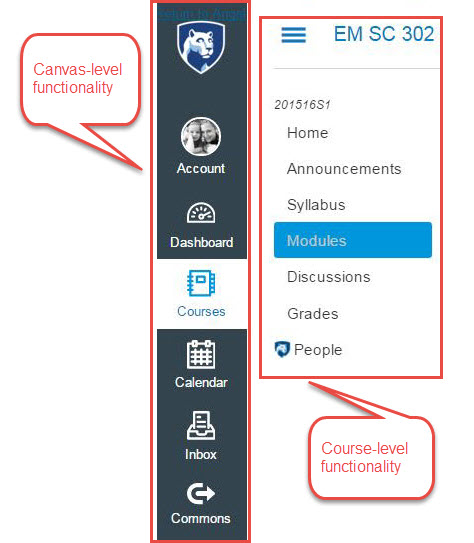
Canvas-level functionality (the same every semester/course)
- ACCOUNT - Edit your profile and personal settings, as well as set your notification preferences (really key to ensuring you're aware of a variety of correspondences in the class).
- DASHBOARD - This shows you all of the courses in which you're currently enrolled.
- COURSES - Lists your courses (similar to Dashboard).
- CALENDAR - What's very handy about the Calendar in Canvas is that you can see due dates for all of your courses at once, color-coded!
- INBOX - If you have any questions, please post to the Canvas Discussion Forum called "Course or assignment-related questions" or e-mail the instructor (if the question is personal in nature). This is Canvas e-mail. It's a bit more like text messaging than proper e-mail, though, because it doesn't have a rich text editor, which means all messages will look like you wrote them on an old school typewriter *gasp!*. However, it is the best way to contact the instructor directly if you have a question which is too personal to share on the discussion forums. Occasionally e-mail may be used to communicate with the class, but generally, the Announcements are used for group communication.
- HELP - Found at the bottom left-hand corner of your Canvas page is the help functionality. If you encounter any technical problems, this button will call the technical cavalry. Canvas offers 24-hour live chat, phone, and e-mail support.
Course-level functionality (may be different in each individual course you're enrolled in)
- HOME - the landing page for the class.
- ANNOUNCEMENTS - this is an integral part of how we'll use Canvas together this semester. Each week, you'll get a "Welcome to Lesson X" Announcement in which you'll be introduced to what's happening in the week to come, discuss any "take home" notes from the previous week, and make other important announcements. Please make sure your notifications are set to receive alerts for new announcements (see the Activity page for this lesson on steps of how to do so!). Also, you can reply directly to Announcements, almost like they are a discussion thread!
- SYLLABUS - this is a bit stripped down from the Syllabus we have on this course website; however, it pulls in all the due dates for assigned work and assembles it for you nicely.
- MODULES - Here you will find links to the assignments, discussions, and other relevant information for the course; organized sequentially by lesson.
- DISCUSSIONS - Access all course-related discussion threads. This includes our weekly discussions for later in the semester, as well as the general discussion threads intended for you to use to ask questions about the course.
- GRADES - Access your running course average as well as individual assignment grades and feedback here. You can also get back into the assignment where you submitted it (in Modules) to see feedback, markup, the grading rubric, and carry on a dialogue with me about any questions you have about your submission and how it was graded.
- PEOPLE - See our course roster.
Setting Up Communication Tools in Canvas
Setting Up Communication Tools in Canvas
In Canvas, there are three main ways that instructors can interact with students and that students can communicate with other students. They are outlined below.
| Communication Type | Communications in Canvas |
|---|---|
| Announcements | Public messages from the instructor are found in the Announcements area of Canvas. |
| Discussion Forums | The discussions in Canvas are threaded conversations. |
| Private e-mail for correspondences between instructors and students or student to student. You can reply from an external program. Some instructors may stipulate that you only use Canvas mail for correspondence (as opposed to your regular PSU e-mail). This helps ensure everything is contained within the class. |
Canvas makes it easy to stay engaged in your courses. Canvas supports several types of communication, as described below.
In addition, you have a Penn State e-mail account (<Access Account ID>@psu.edu) that you will need to monitor for any official communications that come from your adviser, the University, or from the Penn State World Campus. Get in the habit of checking your email a few times a week. Vital information about your accounts, etc. will be communicated to you using your Penn State email account. It's important, so make checking your email a weekly priority.
Set up your Canvas account so that you receive notifications when there is activity in the class.
To set your notifications, click on the "Account" circle that should have your photo in it. Then, click on "Notifications". Set the Announcements, Grading, Submission Comment, and Conversation Message to "Notify me right away." Please note that in addition to pushing the notification to your e-mail immediately, you can also elect to push it to a mobile device. If you have any questions about setting up these notifications, please let us know!

Grades
Grading Structure
Your grade in this course will be formulated from assessments:
- Written assignments
- Course participation (commenting on discussion posts, other work as assigned)
- Quizzes
- Academic planning
All of the grades and instructor feedback on your work will be contained within Canvas. Visit the Grading page to better understand the expectations for each type of assignment. [3]
Each type of assessment has its own Grading Rubric — a table that describes in detail how your grade is calculated. Be sure to visit the rubric for each type of assessment so that you understand how to earn points for all assignments. Rubrics can be found in Canvas in each assignment, typically included as a link or displayed at the bottom of the page (see screenshot below).
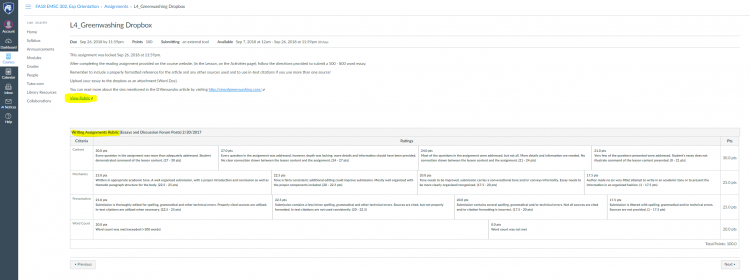
Grades
You can view your grades collectively under Grades in Canvas, or you can go into each assignment individually to review instructor comments and the completed grading rubric used.
Check your grades often. Be sure to discuss any grading issues or concerns you may have with your instructor immediately. If you have not yet been assigned a grade, the space will be left blank - this does not mean you have earned a zero (unless you've not submitted work); it only means your work has not yet been evaluated.
| Letter Grade | Percentage |
|---|---|
| A | 93–100% |
| A- | 90–92.9% |
| B+ | 87–89.9% |
| B | 83–86.9% |
| B- | 80–82.9% |
| C+ | 77–79.9% |
| C | 70–76.9% |
| D | 60–69.9% |
| F | < 60% |
| X | Unsatisfactory (student did not participate) |
Instructor Feedback
Using Canvas, an instructor can leave comments for you directly in the assignment. Additionally, Canvas allows the instructor to edit your work right in the document itself (similar to Microsoft's Track Changes tool for those of you that may be familiar). For your quizzes, the feedback will occur automatically (for multiple choice and true/false) and is visible when you re-review the quiz.
Some instructors will provide lots of detailed feedback, while others may leave little or none. If you have a question regarding a grade, politely ask for more information from the instructor.
Activities
Canvas Activities
In the ESP Program, we work really hard to make sure that our students have a personal, meaningful experience in their classes and that your distance from a campus doesn't detract from that at all. Our motto is, "If we can do it in person, we can do it online!" We encourage you to get to know your instructors, your adviser, AND your classmates. Your classmates all have varied and exciting background experiences, and you can certainly learn from each other. Your classmates are your potential colleagues for the future, so start networking now! For this lesson's assignment, you will be asked to introduce yourself on the Introductions Discussion Forum.
The focus of this assignment is you! Everyone has a story - what is yours? What brought you to the ESP program? Where do you hope the program will take you? Be sure to address the assignment prompts included in the "Assignment Details" section of the table below.
| Requirement | Assignment Details |
|---|---|
| Post a personal introduction video and address the assignment prompts provided. Don't forget to provide a written transcript of your video! | For full details on the assignment, review the Personal Introductions Discussion Forum. |
| Set your Canvas notification preferences and subscribe to Canvas discussion forums (general, technical, current events) |
Review the Notifications tutorial provided by Canvas [5] to learn how to set your notification preferences. Review the How do I subscribe to a Discussion as a Student? [6] tutorial to learn how to subscribe to the discussion forums. |
| Complete the ESP Student Survey | Find the ESP Student Survey in Module 2 and answer the questions as thoroughly as you can. |
| Post a comment on another student's video | For details on the commenting requirement, review the Comment on the Introduction Discussion Forum page. |
Summary
Summary
By now, you should have had a few chances to surf around the course space in Canvas. Hopefully, you'll quickly find using Canvas to be second nature.
One of the most helpful features of Canvas is the calendar feature. All of your courses can input assignment deadlines so that all of the assignments for all of your courses show up in one calendar, making it much easier to understand how your semester will shake out for big projects, exams, etc!
NOTE: If you see something that doesn't make sense here, on the course website or in Canvas, or if you have a suggestion for improvements for this course, please be sure to speak up! I am always looking for ways to make this a better experience for everyone!